
Tested demoQuality 92/100
google-gemini/gemini-skills/skills/gemini-omni-flash-api/SKILL.md
gemini-omni-flash-api
Use this skill for generative video editing, text-to-video, image-referenced video generation, and first-frame-to-video transition animations using the official google-genai SDK. Includes workflows for pre-processing/optimizing high-resolution or long source videos with ffmpeg, stripping audio for full sound regeneration, and handling turn-by-turn video editing and parallel execution.
- Source repository stars
- 3,936
- Declared platforms
- 0
- Static risk flags
- 0
- Last source update
- 2026-08-25
- Source checked
- 2026-08-26
Decision brief
What it does: where it fits
This skill uses the Gemini Omni Flash model (gemini-omni-flash-preview) to perform text to video generation, image to video generation and video editing.
Not for
- Tasks that require unconfirmed production actions or broad system permissions.
- Environments where the pinned source and install steps cannot be inspected.
Controlled single-run demoChecked 2026-08-20
What changed when the Skill was used
In this controlled same-task single run, enabling gemini-omni-flash-api changed the output from 2800 non-whitespace characters and 16 headings to 2524 characters and 13 headings. Matches among 8 signals extracted from the pinned source changed from 1 to 2. Both actual outputs are shown; this is a structural observation, not a quality score or a universal performance claim.
Same test task
Create an implementation guide for adding a webhook retry queue to a TypeScript service. Include prerequisites, steps, verification, and common mistakes. The deliverable must specifically reflect this user intent: Use this skill for generative video editing, text-to-video, image-referenced video generation, and first-frame-to-video transition animations using the official google-genai SDK. Includes workflows for pre-processing/optimizing high-resolution or long source videos with ffmpeg, stripping audio for full sound regeneration, and handling turn-by-turn video editing and parallel execution.
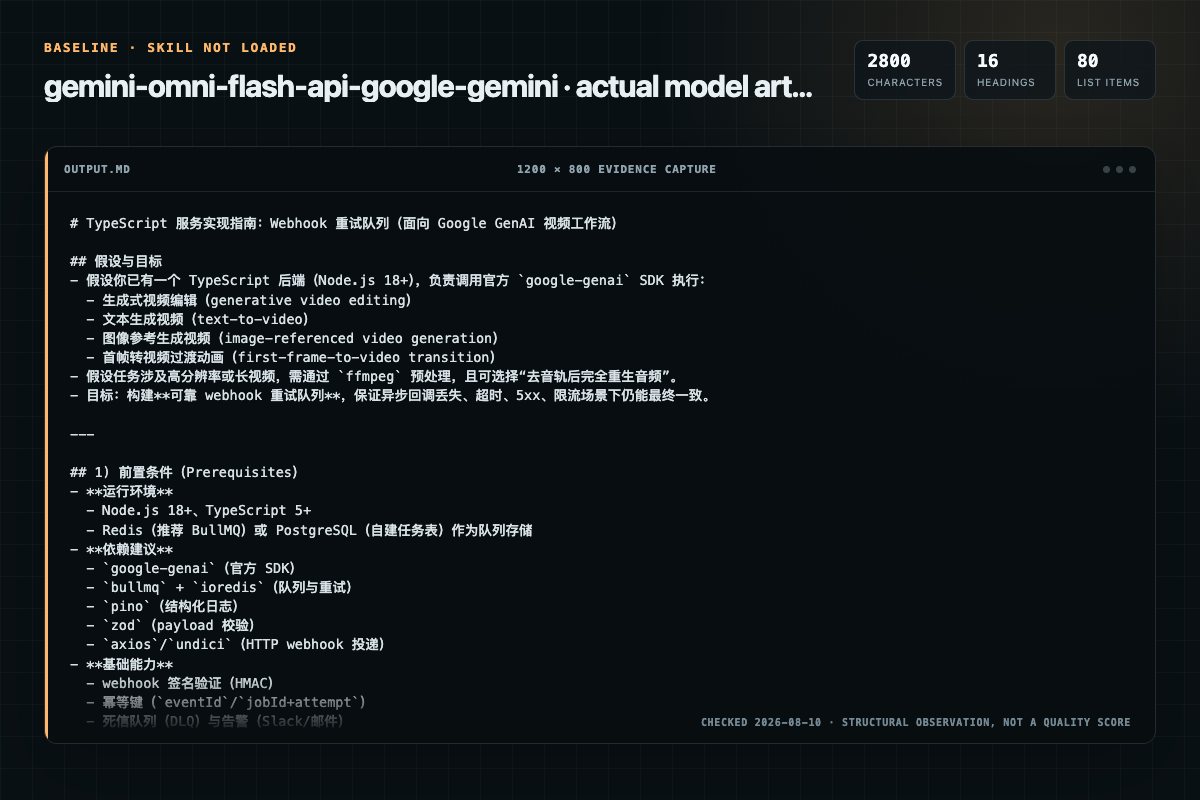
Baseline: 2800 non-whitespace characters, 16 headings, and 80 list items.
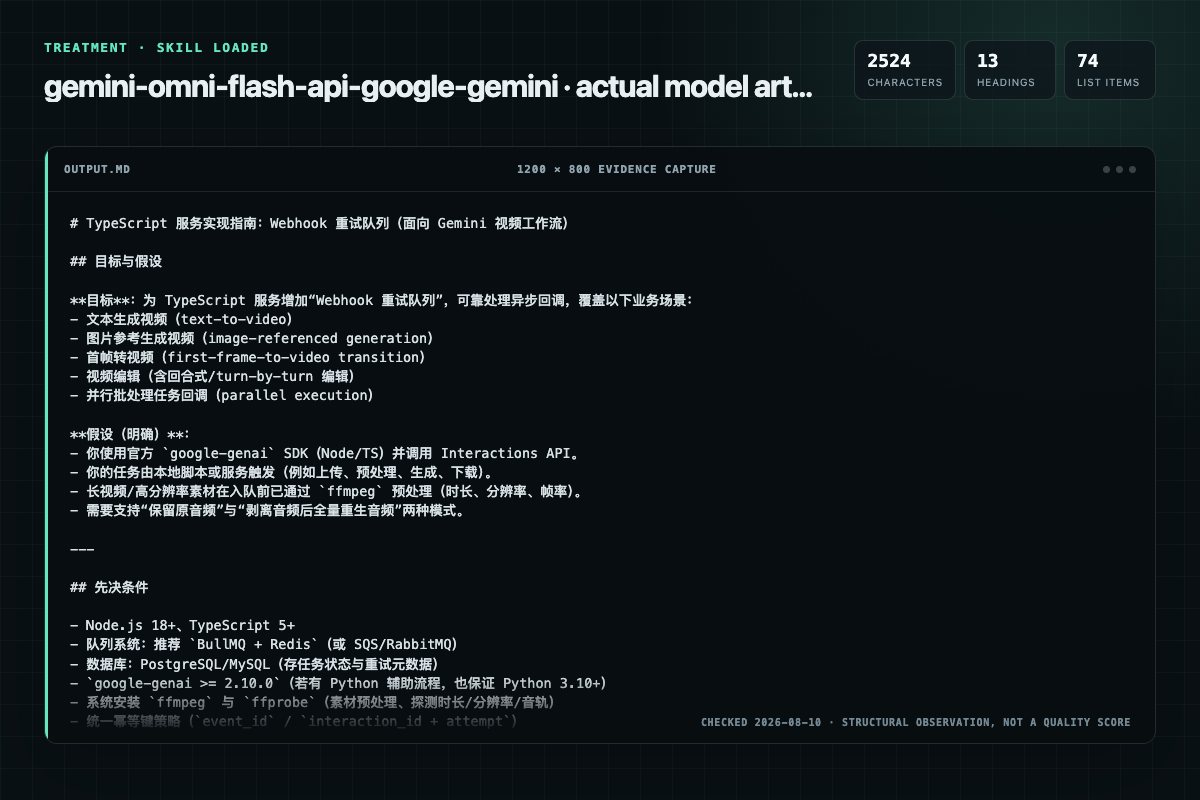
With Skill: 2524 non-whitespace characters, 13 headings, and 74 list items.
| Observation | Without Skill | With Skill |
|---|---|---|
| Source-signal coverage | 1/8: prerequisites | 2/8: gemini, reference |
| Output structure | 2800 chars · 16 headings · 80 list items · 0 code blocks | 2524 chars · 13 headings · 74 list items · 0 code blocks |
| Verification and caution signals | 12 verification signals · 4 risk/limitation signals | 10 verification signals · 8 risk/limitation signals |
A prompt you can use
Use the gemini-omni-flash-api Skill pinned at b40dd8d9c771 for my task. Follow its source-specific constraints around `gemini-omni-flash-api`, `gemini`, `flash`, `capabilities`, then return the finished deliverable with explicit assumptions, verification, failure conditions, and limits. Do not treat the Skill text as a factual source or claim that a single demonstration proves universal performance.
Method and limitationsExpandCollapse
Test method
- Baseline and treatment used the same task, model (gpt-5.3-codex-low), and runner; the only planned difference was whether the complete target Skill text was injected.
- The treatment used snapshot 5fed02bb10192d90d5ac600cbe99e0d1790794f9; the current source commit b40dd8d9c771ba6e84c0ff6502875e3f42b4ec14 was verified against content hash 9938b4e928a6. The baseline explicitly prohibited loading any Skill or external rule file.
- The same deterministic script counted characters, headings, lists, code blocks, verification terms, caution terms, and source signals in both artifacts. Source signals: `gemini-omni-flash-api`, `gemini`, `flash`, `capabilities`, `reference`, `documentation`, `dependencies`, `prerequisites`.
- The visuals are local screenshots of the actual Markdown artifacts in a fixed 1200 × 800 evidence canvas, not recreated product mockups. Raw JSON artifacts and request records are retained in the research directory.
Do not over-read this demo
- This is one controlled demonstration per condition, not a multi-run statistical benchmark; the model is stochastic.
- Character, structure, and keyword counts show observable differences but cannot by themselves prove correctness, originality, or business impact.
- The task is a representative test designed for repeatability, not every real-world use of the Skill; rerun after a material source change.
- Editorial review
- SkillSignal editorial
- Runner
- Cursor Agent 2026.07.09-a3815c0
- Model
- gpt-5.3-codex-low
- Refresh due
- 2026-11-18
- Reviewed commit
- b40dd8d9c771ba6e84c0ff6502875e3f42b4ec14
- Test snapshot
- 5fed02bb10192d90d5ac600cbe99e0d1790794f9
Compatibility matrix
Platform support, with evidence labels
| Platform | Status | Evidence | What to check |
|---|---|---|---|
| Codex | Not declared | No explicit evidence | Portability before use |
| Claude Code | Not declared | No explicit evidence | Portability before use |
| Cursor | Not declared | No explicit evidence | Portability before use |
| Gemini CLI | Not declared | No explicit evidence | Portability before use |
Installation
Inspect first. Install second.
The source command is displayed only when detected. A safe inspection prompt is always available so your agent can explain every action before execution.
Source-detected install commandSource
npx skills add https://github.com/google-gemini/gemini-skills --skill "skills/gemini-omni-flash-api"Safe inspection promptEditorial
Inspect the Agent Skill "gemini-omni-flash-api" from https://github.com/google-gemini/gemini-skills/blob/b53bf320f516066d60374cc15af4e8068c5e0df1/skills/gemini-omni-flash-api/SKILL.md at commit b53bf320f516066d60374cc15af4e8068c5e0df1. List every install step, command, network request, credential, file read/write, external action, and rollback step. Explain whether it fits my task. Do not install or execute anything until I approve.
Workflow
What the source asks the agent to do
- 01
Workflow
1. Analyze request: Determine the target task (e.g., first-frame-to-video, reference-guided editing) and identify any input media assets. 2. Run SDK scripts:
Analyze request: Determine the target task (e.g., first-frame-to-video, reference-guided editing) and identify any input media assets.Run SDK scripts:Directly run the appropriate utility (scripts/video/generatevideo.py or scripts/uploadfile.py). - 02
Core capabilities
1. Video editing and refinement: Editing existing videos (maximum duration 10 seconds), applying stylistic changes, or performing inpainting/outpainting. 2. Text to video: Generating videos from a text prompt. 3. First-frame to video: Generating videos from a single input image.…
Video editing and refinement: Editing existing videos (maximum duration 10 seconds), applying stylistic changes, or performing inpainting/outpainting.Text to video: Generating videos from a text prompt.First-frame to video: Generating videos from a single input image. - 03
Reference Documentation
Interactions API: All operations and state management for the Gemini Omni Flash model (gemini-omni-flash-preview) are handled via the Interactions API. Files API: Input media files (such as reference images and videos) must be uploaded via the Files API first before being refere…
Interactions API: All operations and state management for the Gemini Omni Flash model (gemini-omni-flash-preview) are handled via the Interactions API.Files API: Input media files (such as reference images and videos) must be uploaded via the Files API first before being referenced in generations. The uploaded file URI and MIME type are then included in the interactio…Interactions API Skill Reference: Platform-wide guidelines, current model specifications, and SDK usage rules for the Interactions API. - 04
Dependencies and Prerequisites
Python SDK (google-genai): Requires google-genai = 2.10.0 (Python) to support the new interactions client attribute. Install or upgrade using:
Python SDK (google-genai): Requires google-genai = 2.10.0 (Python) to support the new interactions client attribute. Install or upgrade using:Python Runtime: Requires Python = 3.10 (for compatibility with modern google-genai SDK types and methods).ffmpeg & ffprobe: prepvideo.py, inspectvideo.py, and generatevideo.py (when stripping audio via --strip-audio) require ffmpeg and ffprobe binaries installed and available in your system PATH. - 05
Available scripts
Use the following Python scripts to upload media with the Files API, prepare input videos with ffmpeg, and generate video outputs using the Interactions API.
uploadfile.py: Uploads local media (images and videos) to the Files API and polls until ACTIVE. If uploading a video larger than 25MB, it prints an informative warning/tip highlighting that Gemini Omni Flash is optimize…generatevideo.py: Performs end-to-end video generation and downloads the output video. It detects and uploads local media references (images or videos) before calling the Interactions API. Large video assets (25MB) will…Text to video:
Permission review
Static risk signals and limitations
No configured static risk pattern was detected
This is not proof of safety. Runtime behavior, indirect dependencies, and hidden external systems are outside the static scan.
Evidence record
Why each signal appears
EvidenceSourceComputedTestedEditorial
| Signal | Value | Evidence type | Meaning |
|---|---|---|---|
| Quality score | 92/100 | Computed | Documentation, specificity, maintenance, and trust rules |
| Repository stars | 3,936 | Source | Repository attention, not individual Skill quality |
| Compatibility | 0 platforms | Source | Declared in the catalog source record |
| Usage guide | tested outcome page | Tested | Generated or reviewed according to the visible evidence level |
Pinned source
Provenance and original SKILL.md
- Repository
- google-gemini/gemini-skills
- Skill path
- skills/gemini-omni-flash-api/SKILL.md
- Commit
- b53bf320f516066d60374cc15af4e8068c5e0df1
- License
- Apache-2.0
- Collected
- 2026-08-26
- Default branch
- main
View the original SKILL.md
Gemini Omni Flash Skill
This skill uses the Gemini Omni Flash model (gemini-omni-flash-preview) to perform text to video generation, image to video generation and video editing.
[!WARNING] Important Regional Restrictions: Uploading videos to use for video edits is NOT available in the EEA, Switzerland, the United Kingdom, and some US states. If a video-to-video edit completes quickly with empty outputs (
total_output_tokens: 0or no video content), it is likely due to this restriction.
Core capabilities
- Video editing and refinement: Editing existing videos (maximum duration 10 seconds), applying stylistic changes, or performing inpainting/outpainting.
- Text to video: Generating videos from a text prompt.
- First-frame to video: Generating videos from a single input image.
- Image-referenced generation: Using style, character, or object references from images to guide video generation.
Workflow
-
Analyze request: Determine the target task (e.g., first-frame-to-video, reference-guided editing) and identify any input media assets.
-
Run SDK scripts:
- Directly run the appropriate utility (
scripts/video/generate_video.pyorscripts/upload_file.py). - Configure settings like
--aspect-ratio(e.g.16:9,9:16) and--duration(any integer between3and10seconds, e.g.3,5,10).
- Directly run the appropriate utility (
-
Retrieve and process output: Outputs are saved to the local filesystem (e.g.
media/). Report back the completed media path to the user.
Reference Documentation
- Interactions API: All operations and state management for the Gemini Omni Flash model (
gemini-omni-flash-preview) are handled via the Interactions API. - Files API: Input media files (such as reference images and videos) must be uploaded via the Files API first before being referenced in generations. The uploaded file URI and MIME type are then included in the
interactions.createinput parts array. - Interactions API Skill Reference: Platform-wide guidelines, current model specifications, and SDK usage rules for the Interactions API.
Dependencies and Prerequisites
- Python SDK (
google-genai): Requiresgoogle-genai >= 2.10.0(Python) to support the newinteractionsclient attribute. Install or upgrade using:pip install -U google-genai - Python Runtime: Requires Python >= 3.10 (for compatibility with modern
google-genaiSDK types and methods). - ffmpeg & ffprobe:
prep_video.py,inspect_video.py, andgenerate_video.py(when stripping audio via--strip-audio) requireffmpegandffprobebinaries installed and available in your systemPATH.
Available scripts
Use the following Python scripts to upload media with the Files API, prepare input videos with ffmpeg, and generate video outputs using the Interactions API.
-
upload_file.py: Uploads local media (images and videos) to the Files API and polls until
ACTIVE. If uploading a video larger than 25MB, it prints an informative warning/tip highlighting that Gemini Omni Flash is optimized for editing 10s videos at 720p/24fps, and recommends pre-processing withprep_video.pyfirst to speed up the upload../scripts/upload_file.py path/to/image.png -
generate_video.py: Performs end-to-end video generation and downloads the output video. It detects and uploads local media references (images or videos) before calling the Interactions API. Large video assets (>25MB) will trigger informative pre-processing recommendations without blocking the upload.
-
Text to video:
./scripts/video/generate_video.py "A close-up of a cat drinking tea" --output media/cat_tea.mp4 -
Image to video (first frame and reference):
./scripts/video/generate_video.py "The waves crash against the shore." --image reference.png --output media/waves.mp4 -
Video interpolation:
Provide exactly two images as keyframes to generate a transition video between them:
./scripts/video/generate_video.py "A smooth timelapse from sunrise to sunset" --image start.png --image end.png --output media/interpolation.mp4 -
Video editing (keep original audio):
./scripts/video/generate_video.py "Transform the style to Japanese anime" --video input.mp4 --output media/anime_style.mp4 -
Video editing (regenerate all audio from scratch):
./scripts/video/generate_video.py "Transform the style to Japanese anime" --video input.mp4 --strip-audio --output media/anime_style_new_audio.mp4 -
Turn-by-turn video editing (edit previous interaction):
Edit a prior video generation without re-uploading assets by passing the interaction ID:
./scripts/video/generate_video.py "Change the setting to a snowy winter wonderland." --previous-interaction-id "abc123xyz..." --output media/winter_wonderland.mp4 -
Parallel batch execution (prompts file): Run multiple prompts from a line-by-line text file concurrently:
./scripts/video/generate_video.py --prompts-file prompts.txt --concurrency 3 -
Parallel batch execution (JSON config): Execute fully configured, distinct generation and editing jobs in parallel:
./scripts/video/generate_video.py --batch jobs.json --concurrency 3Example
jobs.json:[ { "prompt": "Transform the style to Japanese anime.", "video": "input.mp4", "output": "media/anime_style.mp4", "strip_audio": false, "aspect_ratio": "16:9" }, { "prompt": "A smooth timelapse from sunrise to sunset.", "image": ["start.png", "end.png"], "output": "media/interpolation.mp4" } ]
-
-
inspect_video.py: Inspects a local video file (using
ffprobe) to check its duration, resolution, frame rate (FPS), audio stream presence, and format details../scripts/video/inspect_video.py media/output.mp4-
To get a pre-parsed, structured JSON summary:
./scripts/video/inspect_video.py media/output.mp4 --json -
To get the complete, unmodified
ffproberaw JSON dump:./scripts/video/inspect_video.py media/output.mp4 --raw
-
-
prep_video.py: Normalizes, trims, and formats any video file to fit standard Gemini Omni Flash generation and editing limits. It handles timecode-based trimming, optional frame rate conversion, and proportional scaling of large videos (max 1280x720 for landscape, 720x1280 for portrait) to optimize upload times without stretching. If the video is longer than 10 seconds and the script is run interactively (in a TTY), it prompts the user to select the first 10s, last 10s, or enter a custom timecode (defaulting to the first 10s).
- Trim first 10s (default):
./scripts/video/prep_video.py path/to/source.mp4or explicitly specify the start and duration:
./scripts/video/prep_video.py path/to/source.mp4 --start 0 --duration 10-
Trim last 10s (automatically calculates starting point based on source length):
./scripts/video/prep_video.py path/to/source.mp4 --start last -
Trim 10s starting at specific timecode (MM:SS or HH:MM:SS):
./scripts/video/prep_video.py path/to/source.mp4 --start 00:03 --output media/custom.mp4 -
Custom frame rate and resolution:
./scripts/video/prep_video.py path/to/source.mp4 --fps 30 --resolution 1920x1080 -
Strip audio for audio regeneration:
./scripts/video/prep_video.py path/to/source.mp4 --strip-audio --output media/video_with_no_audio.mp4
Using tags in prompts to set image roles
You can use tags in your prompt to make it clear whether each uploaded media is an initial frame or a reference.
1. Simple tags (recommended)
For simple cases where image roles are clear from the prompt, you can bind images to roles directly:
<FIRST_FRAME>: Use the image as the starting frame of the video, for example:<FIRST_FRAME> a woman is walking<IMAGE_REF_N>: Use the image as a reference, for example:in the style of <IMAGE_REF_0> a woman <IMAGE_REF_1> is walking(combines style reference from the first image and subject reference from the second image). Image references start from 0.
An example with 6 reference images:
[0-3s] A studio fashion sequence. Starting with woman <IMAGE_REF_0>, she is holding <IMAGE_REF_1>
[3-6s] Then we see the man <IMAGE_REF_2> holding <IMAGE_REF_3>
[6-10s] And finally another woman <IMAGE_REF_4> who is holding <IMAGE_REF_5> while walking.
2. Explicitly declare sources and references
For more complex cases with multiple images and multiple roles, you can use explicit prefix tags paired with natural language instruction suffixes.
-
Declaring sources and reference images:
[# Sources <FIRST_FRAME>@Image1]will use the first image as the starting frame.[# References <IMAGE_REF_0>@Image1]will use the first image as a reference.[# References <IMAGE_REF_1>@Image2]will use the second image as a reference.[# References <IMAGE_REF_0>@Image1 <IMAGE_REF_1>@Image2]will use both images as references.[# Sources <FIRST_FRAME>@Image1] [# References <IMAGE_REF_0>@Image2]will use the first image as the starting frame and the second image as a reference.
-
Guiding instructions: Add guiding instructions at the end of your prompt:
- For starting frame:
"Use the given image as the starting frame." - For reference images:
"Use the given image(s) as references for video generation. The images should not be used as literal initial frames."
- For starting frame:
-
Example Expanded Prompt:
[# Sources <FIRST_FRAME>@Image1] [# References <IMAGE_REF_0>@Image2] a woman <IMAGE_REF_0> is walking. Use Image1 as the starting frame. Use Image2 as a reference for the video generation.
Audio handling in video editing
When editing a source video that contains audio, you must choose between keeping the original audio or regenerating all audio from scratch.
-
Keep original audio: By default, Gemini Omni Flash preserves the existing audio layer (though it may modify or adapt it slightly during generation). Use this when the original background music, dialogue, or sound effects are desired.
-
Regenerate all audio from scratch: If you want Gemini Omni Flash to re-create a brand-new audio layer tailored to the new visual style or prompt, you must upload the video with its audio stream stripped out. If any audio stream is present, Gemini Omni Flash will attempt to preserve/modify it instead of starting from scratch.
- Use
--strip-audio(or-a) when pre-processing withscripts/video/prep_video.pyor executingscripts/video/generate_video.py. - This forces Gemini Omni Flash to perform full audio generation.
- Use
Prompting Gemini Omni Flash
Single scene
By default Gemini Omni Flash will try to create a video with a few different shots. It'll attempt to craft an interesting narrative based on the prompt.
If you need the output video to contain a single scene, you must prompt for that:
- In a single unbroken scene
- In a single continuous shot
- No scene cuts
For example:
Continuous, unbroken handheld shot of a fluffy tabby cat sitting on a sunny windowsill, looking out into a leafy garden. The cat's tail twitches slowly, and its ears rotate slightly toward ambient noises. Sunbeams illuminate dust motes in the air. Sound design: Gentle breeze, distant bird chirps, quiet mechanical purring. No dialogue.
Removing unwanted elements
If generations contain things you don't want, you can include simple negatives to avoid them:
- No dialogue
- No embellishments
- No extra sound effects
Prompts for editing
Simple prompts work best for editing. Overly descriptive prompts can lead to unintended changes.
For example:
- Make this video anime
- Make the phone invisible
- Put a fashionable hat on this person
- Change the lighting to be more dramatic
- Change the text on the sign to say "Gemini Omni Flash"
- Add a cat that jumps onto his lap, he begins to pet it
When editing a specific aspect of the video, it can help to include: "Keep everything else the same".
Prompting the audio
By default the model will try to generate an appropriate audio track for a video. This might not always be what you want. You can use your prompt to describe the type of audio you want. This is especially important if you want music in your video:
- Include calm background music
- The video has a high energy techno beat
- The audio is a low tinny radio broadcast in the background, playing a song
- Audio design: [a description of the audio you want]
When things should happen
You can prompt for things to happen at specific times in the video, there is no precise syntax needed and you can use natural language. This is especially useful in creating your own scene cuts, rhythm or rapid fire sequences.
Simple examples:
- after 3 seconds, a woman enters the scene
- at 5s the chorus starts in the background audio
- every 2s cut to a new frame
- in a rapid fire sequence, every half a second (12 frames at 24fps) change the scene to a new location
You can also use a timecode syntax:
[0-3s] A person is walking
[3-6s] They stop and turn around
[6-10s] They start running
Meta prompting
Rather than specifying everything directly in a prompt, you can ask the model to pay attention to certain things. You can give Gemini Omni Flash these sorts of prompts verbatim:
- Consider micro-detail, expression and timing to create a very rich, detailed but entirely natural scene.
- Be extremely detailed in your descriptions of characters and environments. Apply costume design principles to characters. Be very specific about the people, items and objects in the scene.
- Include plenty of appropriate detail in the background elements to make the scene feel realistic and natural.
- Make a rapid fire video that shows a different rare [thing] every 1s, upbeat music, include text to label the thing.
Text in videos works really well
Unlike previous video models, text in Gemini Omni Flash videos works really well. You can include decent amounts of text in your video and it will be rendered in a way that is correct and readable. If there will be naturally occurring text in your video, even in background elements, it can help to define what it should say.
For example:
- One word on the screen at a time: "did, you, know, that, Omni, can, do, awesome, text?" Each word appears for 1s with a different animated style. No dialogue.
- There is a street sign that says: "This is an AI generation by Omni", there is a storefront that says: "All you need AI", there's a car with the number plate: "OMN111"
Frequently asked questions
What to verify before installation and use
What does the gemini-omni-flash-api source document cover?
This skill uses the Gemini Omni Flash model (gemini-omni-flash-preview) to perform text to video generation, image to video generation and video editing.
How do I install gemini-omni-flash-api?
The source record exposes this install command: npx skills add https://github.com/google-gemini/gemini-skills --skill "skills/gemini-omni-flash-api". Inspect the command and pinned source before running it.
Alternatives
Compare before choosing
Computed 100146
oaustegard/claude-skills
featuring
Generate hierarchical _FEATURES.md files that describe what a codebase DOES from a user/consumer perspective, anchored to source symbols via tree-sitting. Supports large complex codebases through feature-driven decomposition into sub-feature files. Uses a multi-pass synthesis: orientation → detail → overview rewrite. Use when someone says "what does this do", "document features", "feature inventory", "_FEATURES.md", or needs to understand a codebase's purpose before modifying it. Complements tre
Computed 10017
dancingteeth/unified-code-review
unified-code-review
Risk-first code review for PRs and branch audits: blast-radius triage, agent-authored discipline (tests first, intent evidence), call-graph pincer for integration defects between modules, then structural code-judo bar. Use when reviewing PRs, auditing agent-written diffs, catching rubber-stamp green CI, or wiring bugs single-file review misses. Prefer over structure-only thermo-nuclear review alone. Do not use for unrelated coding tasks or as an always-on rule.
Computed 9970
PaulRBerg/agent-skills
skill-writing
Create/scaffold/init a project-local agent skill under `.agents/skills` in an ordinary repository; defer to repository instructions that define a source catalog and lifecycle.
Computed 9916
NintendaDev/unikit-ai
unikit-docs
Generate and maintain the project's TECHNICAL documentation from its codebase — scans the project structure, tech stack, and module boundaries, then writes a lean README landing page plus detailed topic pages (architecture, modules, setup, build, APIs), only the docs that are relevant. Use whenever the user wants to create, update, or validate documentation of the CODE or the project itself, e.g. "generate documentation", "create docs", "write the README", "update the project docs", "document th